Table of Contents
- Introduction
- Types of Map Controls
- Create your First Map
- Geocode Address
- Adding Layers
- Import Data into Map from External Source
- Working with Events
- Working with 3D Map
- Putting all things together
- Conclusion
- References
- History
Introduction
After creating the most popular article 2 years back on Google Maps, I am getting lots of replies/suggestions on my mailbox daily. I have tried to give as much support as I can. During this process, I found lots of people want me to write about Microsoft Map in the same way as I did for Google. While I search for Bing Maps API, I hardly find any links that provides good and precise knowledge on how to start with working with it. Thus, I thought of creating this article for you so that all people who wants to work with Microsoft Maps could be benefitted. I have tried to make this most simple and easy to understand, but if would be excited to see your replies and suggestions. I agree that the article is very much inspired to MSDN as I dont have enough experience with Bing as such. My intension is to give accumulate all the necessary items into a single thread.
If you want to go for Google Maps rather than Microsoft you can follow:
Google Maps in HTML, ASP.NET, PHP, JSP etc. with ease
Microsoft Launches Bing Map services to provide online Mapping Services that enable the user to create custom maps and share information about a location in their own applications. Map service also provides superior API to search for location, Geocode Address of a specific location, Draw Custom Shapes on the map, interact with users etc.
Types of Map Controls
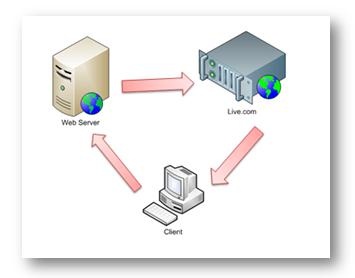
Microsoft Map services gives us two option to create map controls.
- Microsoft Bing Map Control SDK
- Microsoft Bing Web service SDK
In both the process when client requests the server, server gets the data from live.com and sends back to the client. Thus the client always need to be connected to the internet even if it is working in LAN to get online data from Live Servers.
Bing Map Control SDK
The SDK provides Javascript API services that might be added freely to the website and start working with them. The api gives you a number of Javascript classes which one might use to create maps. As this works only in the client side using Javascript, you can use this service to any programming language you wish to (Such as JSP, PHP, ASP etc).
Bing Map Web Srvice SDK
The web service API is a programmable SOAP services implemented using Windows Communication Foundation. You can make use of the library of classes generated automatically when you add reference to the web service. You can integrate the Web service to your web site or WPF windows client and get Imaginary Data when connected to Internet.
In this Article I am going to discuss about Bing Map Control SDK which is Javascript library. I will give you examples on how to make use of Virtual Earth Map controls in your website a better way.
Create your First Map
This might seem to you most exciting. Let us make the most simple map in a web page. I am using just normal html code to make you understand a better and to make this useful to all.
To create a map Just follow the steps below :
- Add the Doctype Declaration at the Top of the Page.
Copy Code
<!DOCTYPE html PUBLIC "-//W3C//DTD XHTML 1.0 Transitional//EN" "http://www.w3.org/TR/xhtml1/DTD/xhtml1-transitional.dtd">
This is very useful as VEMap requires Transitional Dtd.
- In
<head>section addCopy Code
<meta http-equiv="Content-Type" content="text/html; charset=utf-8">
Microsoft Recommends use of UTF-8 charset for a web application which displays
VEMap. - In the header section add the Javascript Declaration which downloads the Javascript file to get Imaginary data.
Copy Code
<script charset="UTF-8" type="text/javascript"src="http://ecn.dev.virtualearth.net/mapcontrol/mapcontrol.ashx?v=6.2&mkt=en-us"></script>
The
http://ecn.dev.virtualearth.net/mapcontrol/mapcontrol.ashx?v=6.2&mkt=en-usis the main JavaScript file which should be added to your web page to work withVEMapclasses.Note : You need to always call the JavaScript using this link. You cant save the Javascript file to your server and then try creating your map from it.
- Add a container which holds the imaginary data and draw the map. Preferably use Div in this regard.
Copy Code
<div ></div>
The map will appear inside the div.
Now putting all of them together we get this page :
<!DOCTYPE html PUBLIC "-//W3C//DTD XHTML 1.0 Transitional//EN"
  "http://www.w3.org/TR/xhtml1/DTD/xhtml1-transitional.dtd"><html xmlns="http://www.w3.org/1999/xhtml">
<head>
    <title>My First Map</title>
    <meta http-equiv="Content-Type" content="text/html; charset=utf-8" />
    <script type="text/javascript" src="http://ecn.dev.virtualearth.net/mapcontrol/mapcontrol.ashx?v=6.2">
    </script>
    <script type="text/javascript">
         var map = null;
         var LA = new VELatLong(34.0540, -118.2370, altitude, VELatLong.RelativeToGround);
         function getMap()
         {
            var myMap = document.getElementById("myMap");
            myMap.style.display='';
            map = new VEMap('myMap');
            map.LoadMap(LA, 14, VEMapStyle.Road, false, VEMapMode.Mode2D, true,
 1);
         }
    </script>
</head>
<body>
    <div >
    </div>
    <input type="button" onclick="getMap();" value="Show Map" />
</body>
</html>